Platform how-to
Cleaning data in Power Query before it reaches a report
Most report bugs are cleaning bugs. A few Power Query steps, applied in the right order, catch them before anyone sees a chart.
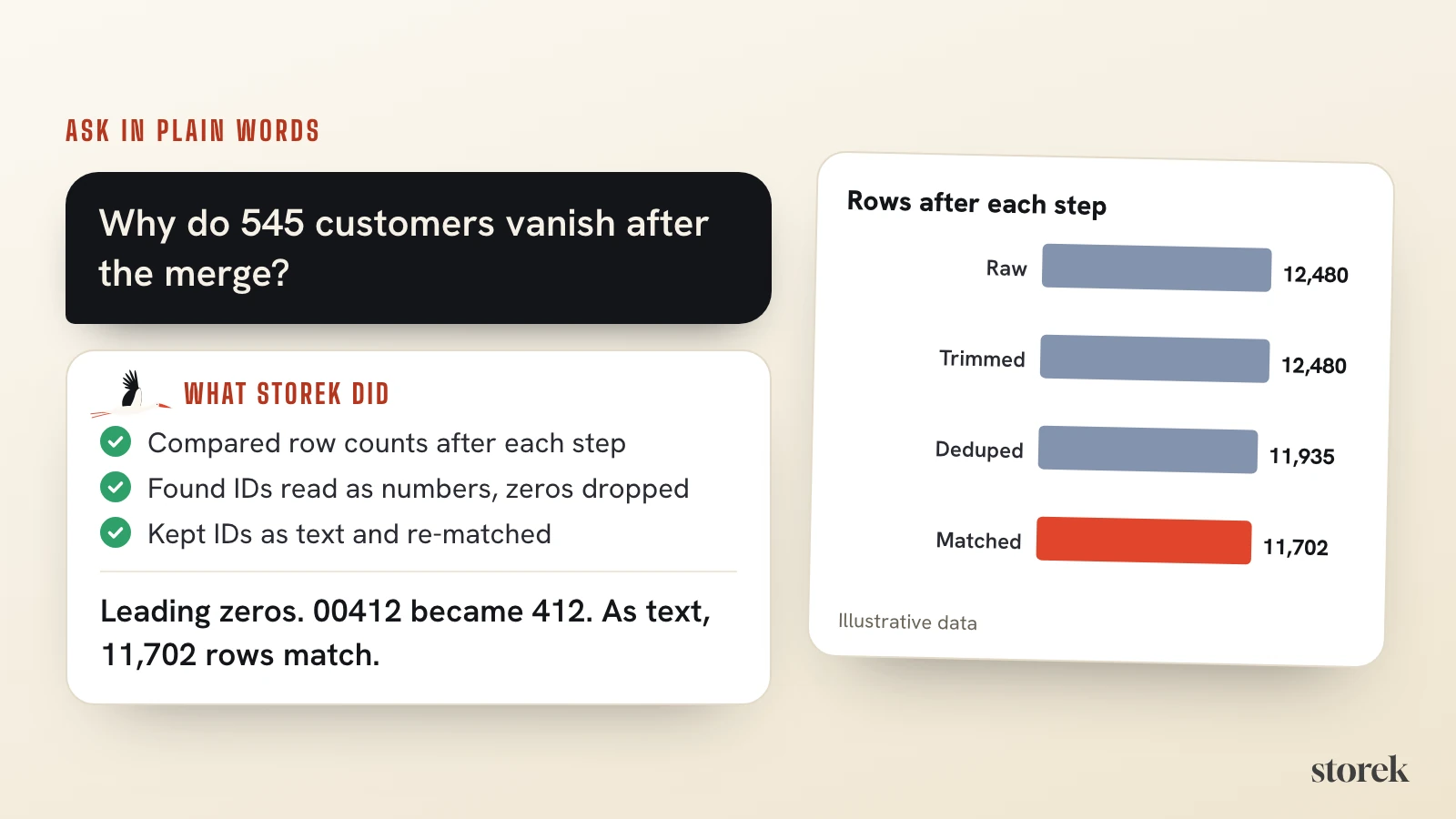
Dana manages customer data at Fernwood Supply, a regional distributor. Her sales report showed 312 customers in New Jersey; the CRM said 298. After an afternoon of digging she found the culprits: zip codes like 07030 had become 7030, “Acme Corp “ with a trailing space counted as a separate customer from “Acme Corp”, and a handful of rows read “N/A” where a region should be.
None of this was Power BI’s fault. The data arrived messy, and the cleaning hadn’t happened yet. Power Query is the place to do it, before the data reaches the model.
The order matters
Each step changes what the next one sees. A sensible order:
- Set typesIDs and zips as Text
- Trim and CleanSpaces and hidden characters
- Replace valuesN/A, blanks, typos
- Remove duplicatesOn the true key
- MergeExact, or fuzzy for names
Before and after
| CustomerID | Name | Zip | Region |
|---|---|---|---|
| 1042 | Acme Corp | 7030 | N/A |
| 01043 | Birchwood LLC | 08540 | NJ |
| 1042 | Acme Corp | 7030 | NJ |
| CustomerID | Name | Zip | Region |
|---|---|---|---|
| 01042 | Acme Corp | 07030 | NJ |
| 01043 | Birchwood LLC | 08540 | NJ |
Step by step in Power Query
Open Power Query and set types first
In Power BI Desktop, go to Home > Transform data. Look at the Applied Steps pane. If there’s an automatic Changed Type step, check what it did to ID, zip and phone columns. Select those columns, then use Transform > Data Type > Text (or the type icon in the column header). If asked, choose Replace current so the earlier conversion is replaced rather than stacked.
Leading zeros only survive if the column is Text from the start. If the source is a CSV, the zeros are in the file, so fixing the type step brings them back. If the zeros were already lost upstream (in a saved Excel sheet, say), pad them back with Add Column > Custom Column and
Text.PadStart([Zip], 5, "0").Trim and Clean text columns
Select the text columns and choose Transform > Format > Trim to remove leading and trailing spaces, then Transform > Format > Clean to remove non-printable characters such as line breaks. If case shouldn’t matter, add Format > Capitalize Each Word or Uppercase too.
Replace placeholder values
Right-click the Region column and choose Replace Values. Replace “N/A” with nothing, or with the right value if you know it. Repeat for other placeholders like “-”, “TBD” or “unknown”. Blank and null aren’t the same in Power Query, so be consistent about which one you leave.
Remove duplicates on the right key
Select the column (or columns) that should be unique, here CustomerID, and choose Home > Remove Rows > Remove Duplicates. Power Query keeps the first occurrence and compares text case-sensitively, which is why trimming and case come first. To review the duplicates before deleting them, use Home > Keep Rows > Keep Duplicates on a copy of the query.
Merge with fuzzy matching when names are typed by people
To bring in data from another list that only shares a company name, use Home > Merge Queries. Pick the matching columns, then tick Use fuzzy matching to perform the merge. Under fuzzy options you can set a similarity threshold, ignore case and ignore spaces. Start strict, review the matches, then loosen if needed. For IDs, prefer an exact merge on cleaned keys.
Check your work
- Count rows before and after Remove Duplicates, and spot-check what was dropped.
- Use View > Column quality and Column distribution to see errors, empties and distinct values per column.
- Confirm that keys you’ll relate later have the same type in both tables. Mismatched types are a common cause of Power BI numbers that don’t match Excel and of accidental many-to-many relationships.
Once tables are clean, split them into facts and dimensions with star schema basics, and if a source arrives with one column per month, unpivot it next.
When cleaning is the job that never ends
The trouble with cleaning steps is that each new export, or each new person’s spreadsheet, brings a slightly different mess. We wrote about that pattern in scattered spreadsheets to one picture.
If keeping up with it is too much, Storek can take it on. You add your files to one place, it notices when a column changes shape and checks every load’s row count against the source. Then you can ask questions in plain words on data that’s already tidy.
Sources
- Data types in Power Query · Microsoft Learn · checked November 13, 2026
- Working with duplicate values · Microsoft Learn · checked November 13, 2026
- Fuzzy merge · Microsoft Learn · checked November 13, 2026