Platform how-to · Sales operations
Dynamics 365 duplicate accounts and contacts: detection rules, detection jobs and reports you can trust
Dynamics 365 can warn people before they create a duplicate and scan for the ones already there. Here is a practical routine that uses both, and keeps your reports right in the meantime.
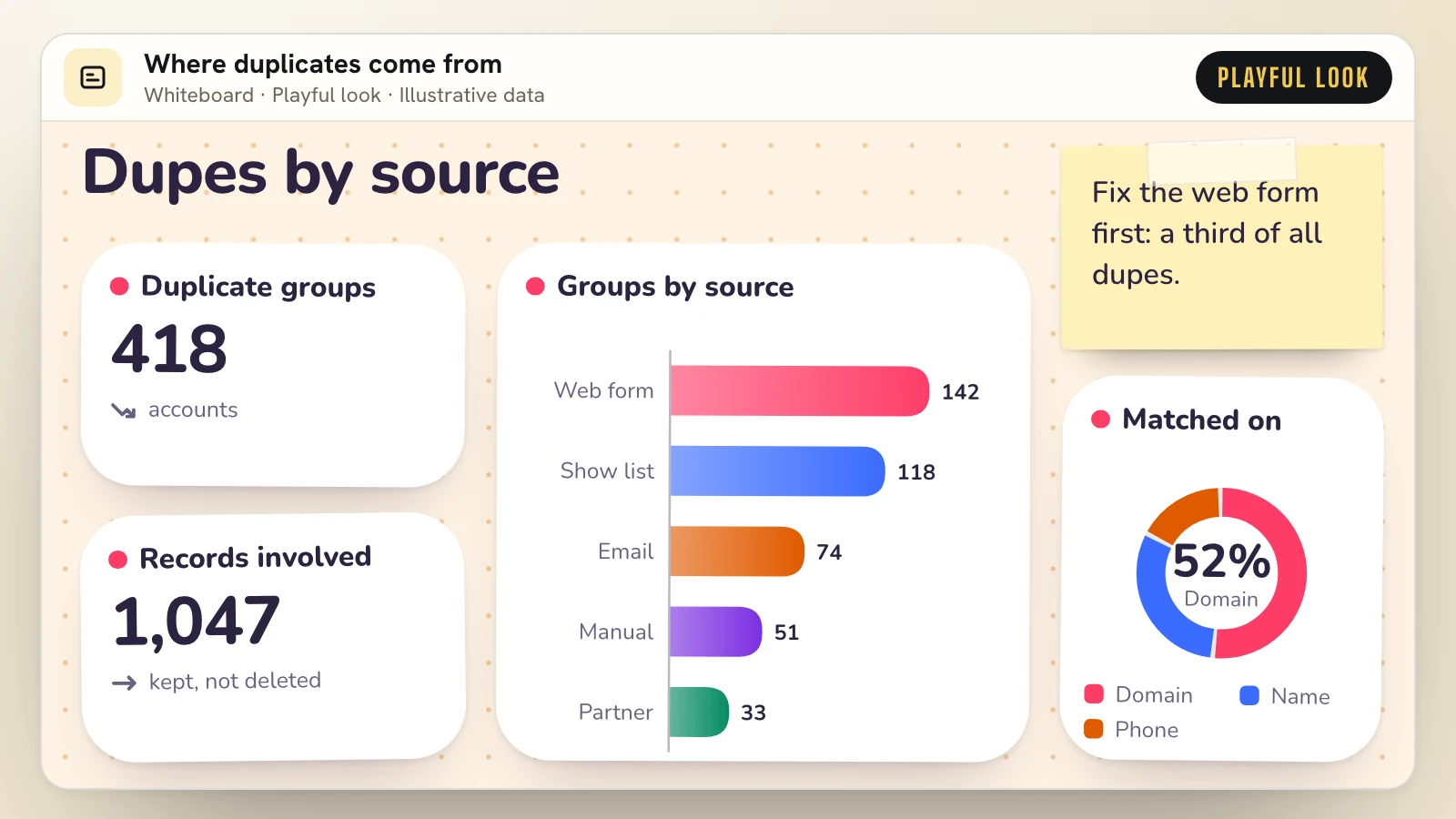
Marcus Bell is the CRM administrator at Halloway Medical Supplies. The sales director asked him a fair question: why did the territory dashboard show 214 hospital accounts in the North when the field team visited about 170? Marcus searched for one familiar name and found “St. Brennan’s Hospital”, “Saint Brennans Hospital” and “St Brennan Hospital Trust”. Three accounts, three owners, activities split across all of them.
Halloway had duplicate detection turned on. It had caught many duplicates at entry. The ones it missed had arrived through a trade-show import, a partner list and web forms that create records without a person in the loop.
How Dynamics 365 handles duplicates
Duplicate detection rules
A duplicate detection rule tells Dynamics when two records count as duplicates: for example, contacts with the same email address, or accounts with the same account name. Rules are managed by a system administrator in the data management settings. Each rule has a base record type, a matching record type and the fields to compare, with options such as exact match or the first few characters.
Useful starting rules:
- Contacts with the same email address.
- Accounts with the same website or email domain, if you store one.
- Accounts with the same main phone, normalised if your data allows it.
- Leads compared with contacts on email, so a known person filling in a form is spotted.
Remember that rules compare the field values as stored. “St.” and “Saint” are different strings to a rule, which is why account name alone catches less than you would hope.
Duplicate detection jobs
Rules act when records are saved. To scan what is already there, run a duplicate detection job on the record type. The job lists the duplicates it finds so someone can review and merge them. Schedule it after big imports.
Merging
Dynamics merges two records at a time. You choose the master record and which field values survive; related records such as activities, notes and child contacts move to the master. Agree the rule first: most recent activity, or the account with active orders.
Finding what the rules miss
Rules are only as good as the stored values. For the existing data, export accounts and contacts, using Advanced Find or a view and the Export to Excel option, with IDs, names, emails, phones, websites and addresses. Then:
- Normalise: lower-case, remove “Ltd”, “Inc”, “Trust” and punctuation, expand “St.” to “Saint” where it starts a name, keep phone digits only.
- Match on clues: one strong clue (email, phone, registration number) or two supporting clues (domain, name, postcode).
- Group: if A matches B and B matches C, they are one account.
The identity matching guide explains which clues are strong and which are only supporting.
The question the sales director asked
“How many distinct hospital accounts do we have per territory, with duplicates counted once?”
- normalised account names, phones and email domains from the Dynamics export
- grouped accounts that share a phone, a domain or a matching name and postcode
- counted each group once per territory and listed the groups for merging
The North has 168 distinct hospital accounts, not 214, and the list of 46 folded records is ready for Marcus to merge.
Dig deeper: see how it works
The Dynamics records stay as they are. Storek counts each group once in every answer and dashboard and keeps the clue that linked each pair, so Marcus can merge the confirmed groups in Dynamics at his own pace, and the numbers are right in the meantime.
For analysts
SELECT territory,
       COUNT(DISTINCT accountid)       AS records,
       COUNT(DISTINCT account_group)   AS distinct_accounts
FROM dyn_accounts a
JOIN account_groups g USING (accountid)
WHERE a.industry = 'Hospital' AND a.statecode = 0
GROUP BY territory;
The chart at the top of this page shows what Marcus found when he looked at where the duplicates came from: imports and forms created most of them. He added a pre-import check against existing accounts, which stopped the next trade-show list from adding another batch.
A routine that keeps Dynamics clean
- Before every import: match the file against existing accounts and contacts on email, phone and domain.
- After every import: run a duplicate detection job on the affected record type.
- Monthly: merge the confirmed groups and track how many remain.
- In every report: count distinct groups, not records, so dashboards stay right between clean-ups. The guide to filtering duplicates covers this step in detail.
Where Storek fits
Storek connects to Dynamics 365 through its export or connector, next to your billing, support and spreadsheet data. It works out which accounts and contacts describe the same organisation or person and counts each once in every answer, dashboard and whiteboard, while Dynamics stays untouched. Read more on the data mapping page.