Platform how-to
Using the AI assistant your team already uses with your company's data
Your team already has an AI assistant open all day. With a read-only connection to your data, it can answer business questions too. Here is how to set it up and use it well.
To use the AI assistant your team already uses with your company’s data, connect it to a governed data workspace through a read-only connection, sign each person in with their own account, and let the assistant ask the workspace for answers instead of reading raw files. Then use it for what it does well: quick questions in the middle of other work, answers you turn into an email or a plan, and follow-ups in the same conversation.
We covered why this is safe in bring your own AI assistant to your company data: the counting happens in the workspace, personal details stay masked, and the data stays where it is. This piece is about the practical part: getting it running, and getting good answers from it every day.
How the connection works, in one paragraph
Assistants such as Claude can connect to outside tools through the Model Context Protocol, an open standard for linking AI apps to data and tools. Storek offers a connector that speaks it. The assistant gets a small set of read-only tools: look up which tables exist and what they hold, run a question against the data, check that a segment really exists, fetch a report or a chart. It cannot change anything. Each person signs in with their own account, so the assistant sees exactly what that person may see, with the same masking.
Setting it up
1. Connect the sources first
Bring in the spreadsheets and business systems the questions need: CRM, billing, support desk, or a sensor feed. The assistant can only answer from what is connected.
2. Agree a few key words
Write down what your team means by words like active customer, churn and revenue. The assistant uses those definitions, so its numbers match the dashboards.
3. An admin turns the connector on
It is off for every workspace until an admin enables it. Start with a small group who ask a lot of questions.
4. Each person adds it to their assistant and signs in
They add the connector in their assistant’s settings and sign in through the usual sign-in page. Access can be withdrawn for one person or everyone, in one place.
What a good day with it looks like
Priya leads customer success at Northgate Fitness Software, a company that sells booking software to gyms. Her mornings are full of small questions that used to wait for a report.
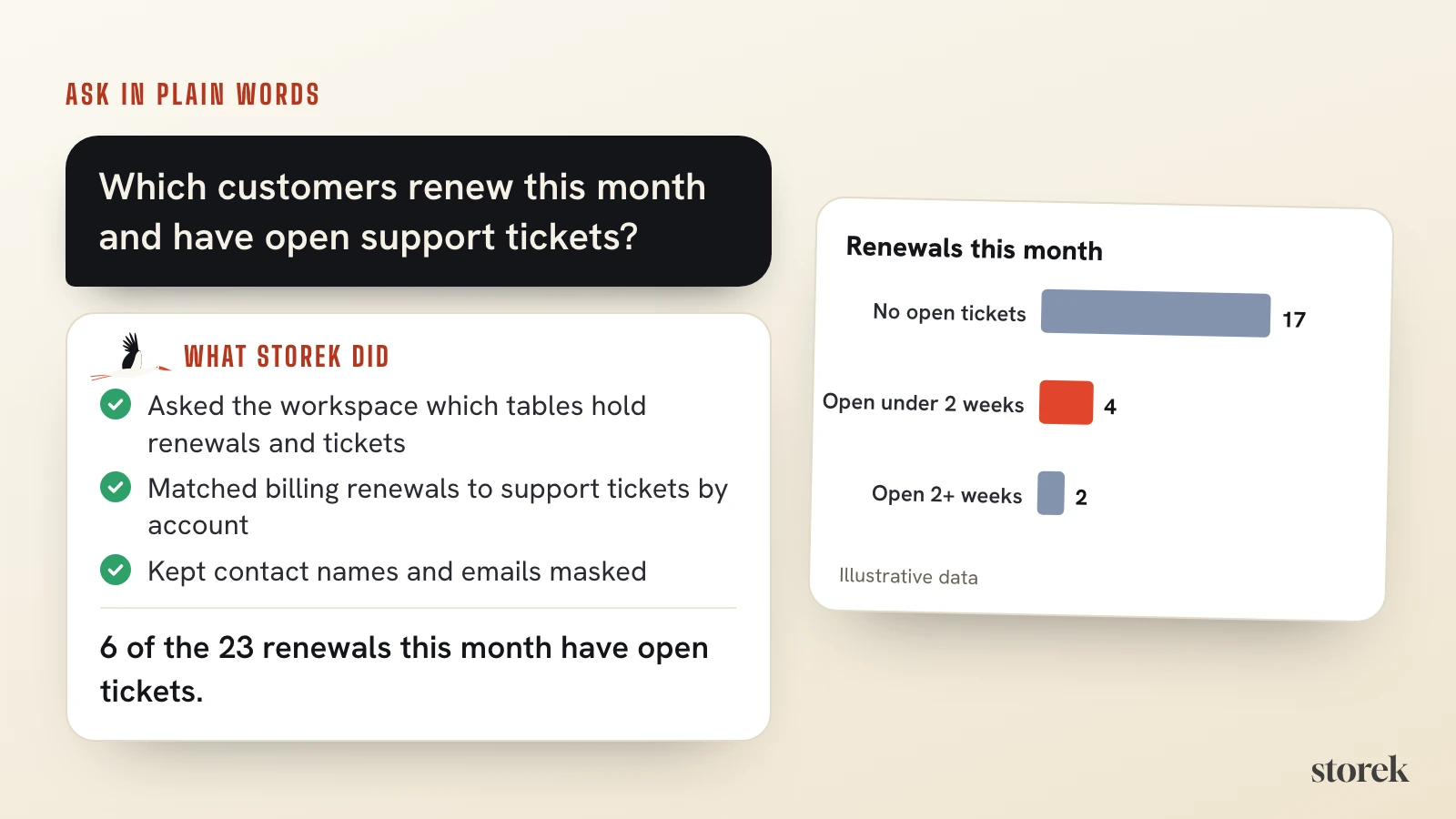
“Which customers renew this month and have open support tickets?”
- Asked the workspace which tables hold renewals and tickets
- Matched renewal dates from billing to tickets from the support desk, by account
- Kept contact names and emails masked
6 of the 23 renewals this month have open tickets. Two have been open for more than two weeks.
She asks the next question in the same conversation: “For those six, what plan are they on and who owns the account?” Then she asks the assistant to draft a short note to each account owner with the ticket count and renewal date. The numbers in the note came from the workspace. The wording came from the assistant. That split is the right one: the data work happens where it can be checked, and the assistant does what it is good at.
Later she asks something the data cannot answer: “Which customers are unhappy with the new calendar view?” The workspace has no survey or feedback data on that, so the honest answer is that it does not know, along with what it could look at instead, such as tickets that mention the calendar.
Questions that work well
- Lookups across systems. “Which accounts have an unpaid invoice and an open ticket?” These used to take two exports and a matching session.
- Quick numbers in the middle of other work. “How many new trials did we get last week?” while drafting the weekly update.
- Follow-ups. Each answer can be narrowed, compared or turned into a list in the same conversation. Our guide on what to ask your data next has a simple pattern for this.
- Answer, then write. Get the figures from the data, then let the assistant draft the email, summary or plan around them.
Habits that keep answers right
Check the first answer of each new kind. The answer comes back with how it was worked out. Read that the first time you ask something new, and compare it with a number you already trust. Our piece on checking AI answers about your data lists six quick checks.
Keep the numbers and the prose apart in your head. Figures that came from the workspace are backed by a query. Words the assistant adds around them, such as “a worrying trend”, are its own reading. Fine for a draft, worth a second look before it goes to a customer.
Fix meanings in one place. If an answer used a word the wrong way, correct the definition in the workspace, not just in the chat. Then every person and every assistant gets the corrected meaning.
How Storek helps
Storek’s AI connector lets Claude or any MCP client ask your workspace questions through read-only tools, with each person signed in under their own account and the same masking applied as everywhere else. An admin switches it on and can switch it off again in one place. The answers come with their working, use the definitions your team wrote down once, and match the dashboards because they come from the same place.
If you want to try it with your own CRM, billing or support desk data, a free 30-day pilot is a good way to start. Book a demo and we will connect the first sources with you.
Sources
- What is the Model Context Protocol (MCP)? · Model Context Protocol · checked November 15, 2026